
How to Set Up Recurring Payments in WooCommerce Using Stripe or PayPal

March 5, 2025

Recurring payments are one of the most powerful ways to generate predictable revenue from your WooCommerce store. Whether you’re selling memberships, subscription boxes, SaaS tools, or digital content, automated billing ensures customers are charged on a regular schedule without manual work.

In this guide, you’ll learn how to set up recurring payments in WooCommerce using Stripe or PayPal, and how a subscription plugin can automate the entire process.

Why Recurring Payments Matter for WooCommerce Stores

Subscription-based ecommerce has grown rapidly because it provides stable and predictable income for online businesses. Instead of relying on one-time purchases, customers subscribe to ongoing services or products. 

With WooCommerce subscriptions you can:
• Charge customers weekly, monthly, or yearly
• Offer free trials or sign-up fees
• Allow customers to upgrade, downgrade, or cancel subscriptions
• Combine subscription products with one-time purchases

To enable these features, you need a WooCommerce subscription plugin that works with payment gateways like Stripe or PayPal.

What You Need Before Setting Up Recurring Payments

Before creating subscription products, make sure your WooCommerce store has the following:
1. WooCommerce installed and active
2. A subscription plugin to handle recurring billing
3. A payment gateway like Stripe or PayPal
4. SSL enabled for secure payments

WooCommerce itself does not include built-in recurring billing, so you need a plugin to manage subscription plans and automatic renewals.
settings

Step 1: Install a WooCommerce Subscriptions Plugin

The first step is installing a plugin that adds subscription functionality to WooCommerce, like Easy Subscriptions.
 
These plugins allow you to:
• Turn any product into a subscription
• Automate recurring payments
• Manage customer subscriptions
• Track renewals and billing cycles
Once installed, you’ll be able to create products like:
• Monthly memberships
• Weekly product deliveries
• Software subscriptions
• Online course access

Most subscription plugins support payment gateways like Stripe and PayPal for automated renewals. 

Step 2: Set Up Stripe for Recurring Payments

Stripe is one of the most popular payment gateways for WooCommerce because it allows customers to pay directly on your site without redirects. 


How to enable Stripe
1. Install WooCommerce Stripe Payment Gateway
2. Go to WooCommerce → Settings → Payments
3. Click Stripe → Set up
4. Connect your Stripe account
5. Enable payment methods like cards or wallets


Stripe in combination with Easy Subscriptions supports subscription billing through tokenized payments, allowing the system to automatically charge customers on each billing cycle. 
 

Step 3: Set Up PayPal Recurring Payments

PayPal is another widely used gateway that supports subscription payments in WooCommerce.


Steps to enable PayPal subscriptions
1. Install the official WooCommerce PayPal Payments plugin by Paypal
2. Connect your live PayPal Business account


Once configured, WooCommerce can process automatic PayPal renewals for your subscription products.

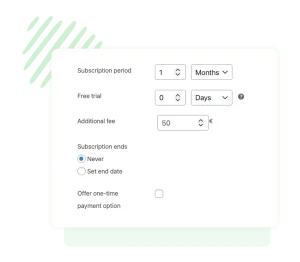
Step 4: Create a Subscription Product

Once the payment gateways are configured, you can create your first subscription product.

How to create one
1. Go to Products → Add New
2. Click the “Subscription” checkbox in the product settings
3. Set your price and billing interval
4. Configure optional features like:
• Free trials
• Sign-up fees
• Billing limits
5. Publish the product

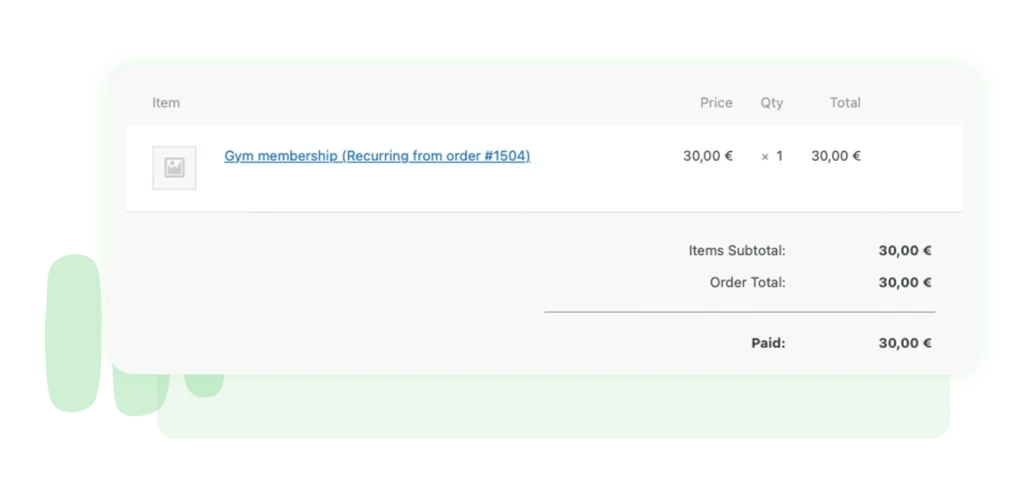
Your customers will now be automatically charged according to the billing schedule you set.
 
Setting up recurring payments in WooCommerce using Stripe or PayPal is easier than ever. With the right subscription plugin, you can automate billing, manage subscribers, and build a predictable revenue stream for your business.


Once configured, your store will automatically charge customers on each billing cycle, allowing you to focus on growing your subscription business instead of managing payments manually.
Table of contents